1
Open locally
Choose a CSV on your device. A 25 MB and 10,000-row ceiling prevents unexpectedly large files consuming memory.
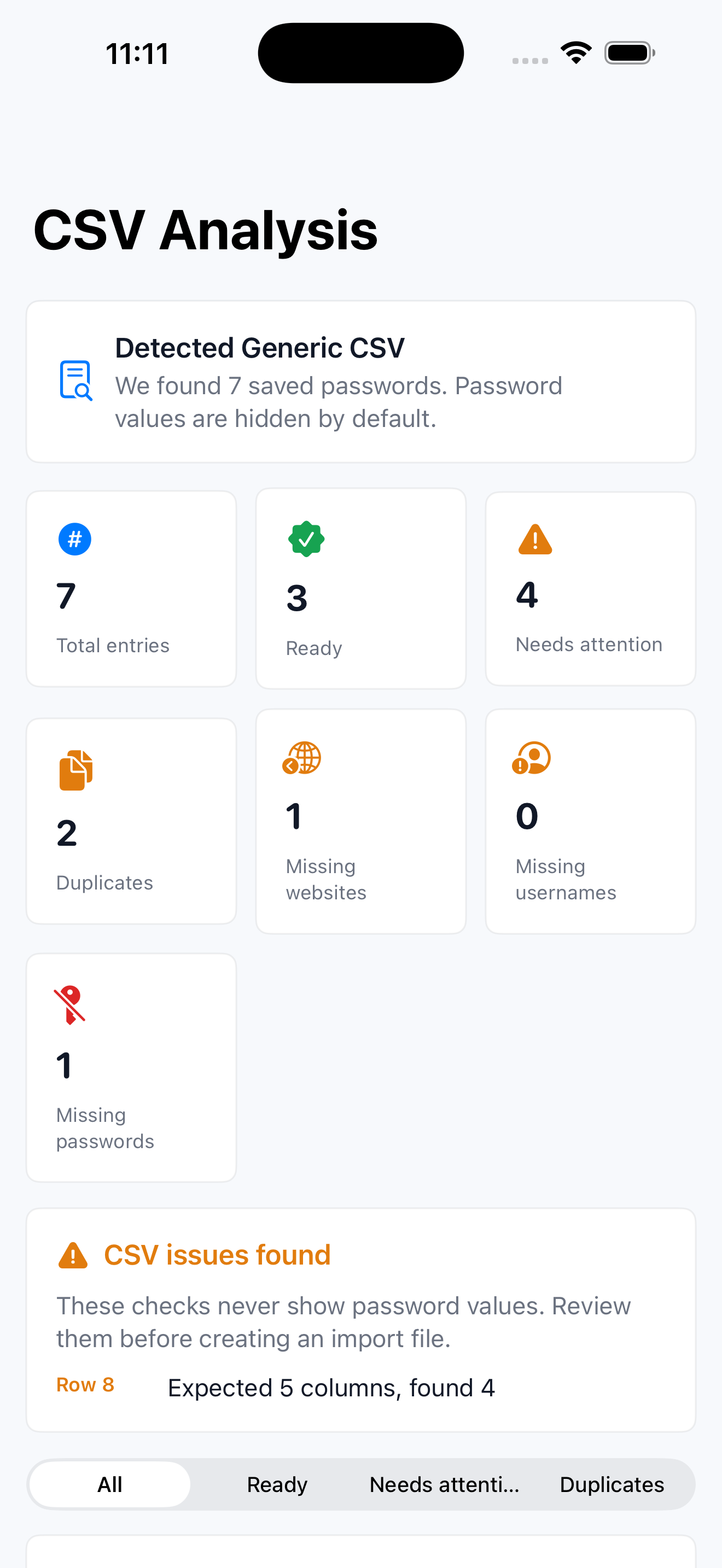
PortaPass finds duplicates, missing fields, malformed websites and format mismatches on your device—then creates a clean Apple Passwords or Chrome file when you are ready.
Apple and Google already provide import tools. PortaPass makes the sensitive file legible before you hand it to them.
Choose a CSV on your device. A 25 MB and 10,000-row ceiling prevents unexpectedly large files consuming memory.
Map columns, inspect row errors, separate exact duplicates from conflicts, and exclude individual entries without exposing passwords.
Create the destination format, preserve Apple OTPAuth values, respect Google’s 3,000-row limit, import, then delete both files.
Paste only one line of column names. Checks run in this tab, with no upload. Malformed quotes, duplicate names and hidden line separators are flagged. A matching header does not prove that the full file will import.
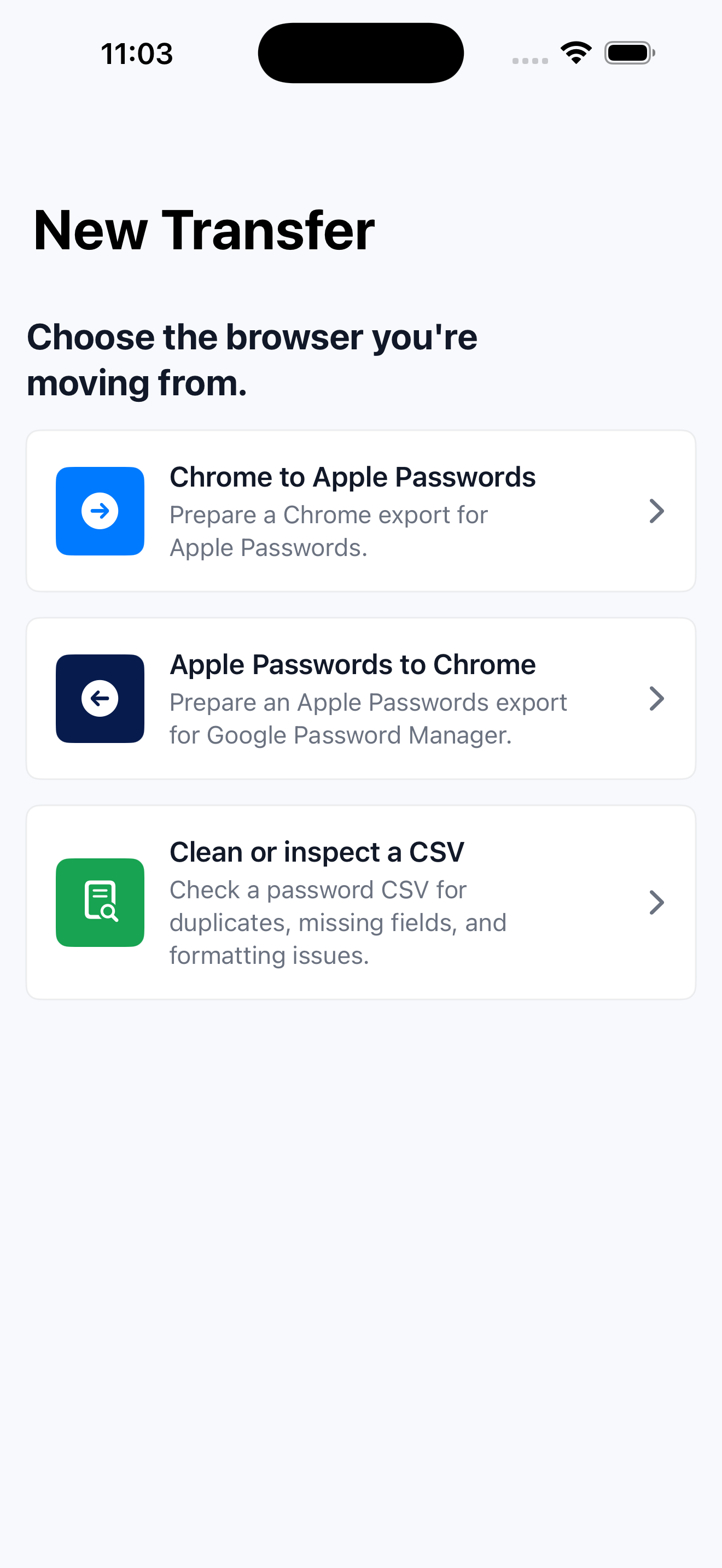
Compare the exact headers and field mapping written by PortaPass, without sharing any credential rows.
A private, practical checklist for checking a Chrome password export before importing it into Apple Passwords.
Prepare an Apple Passwords CSV for Google Password Manager while protecting OTPAuth data and respecting Google’s import limits.
Diagnose missing columns, bad websites, duplicates, quoting errors and blank passwords before a password-manager import.
Understand Title, URL, Username, Password, Notes and OTPAuth in PortaPass’s Apple-format CSV export.
Check the required URL, username and password headers and prepare a Chrome-compatible password CSV.
Avoid silently losing time-based one-time-code seeds when preparing an Apple Passwords CSV.
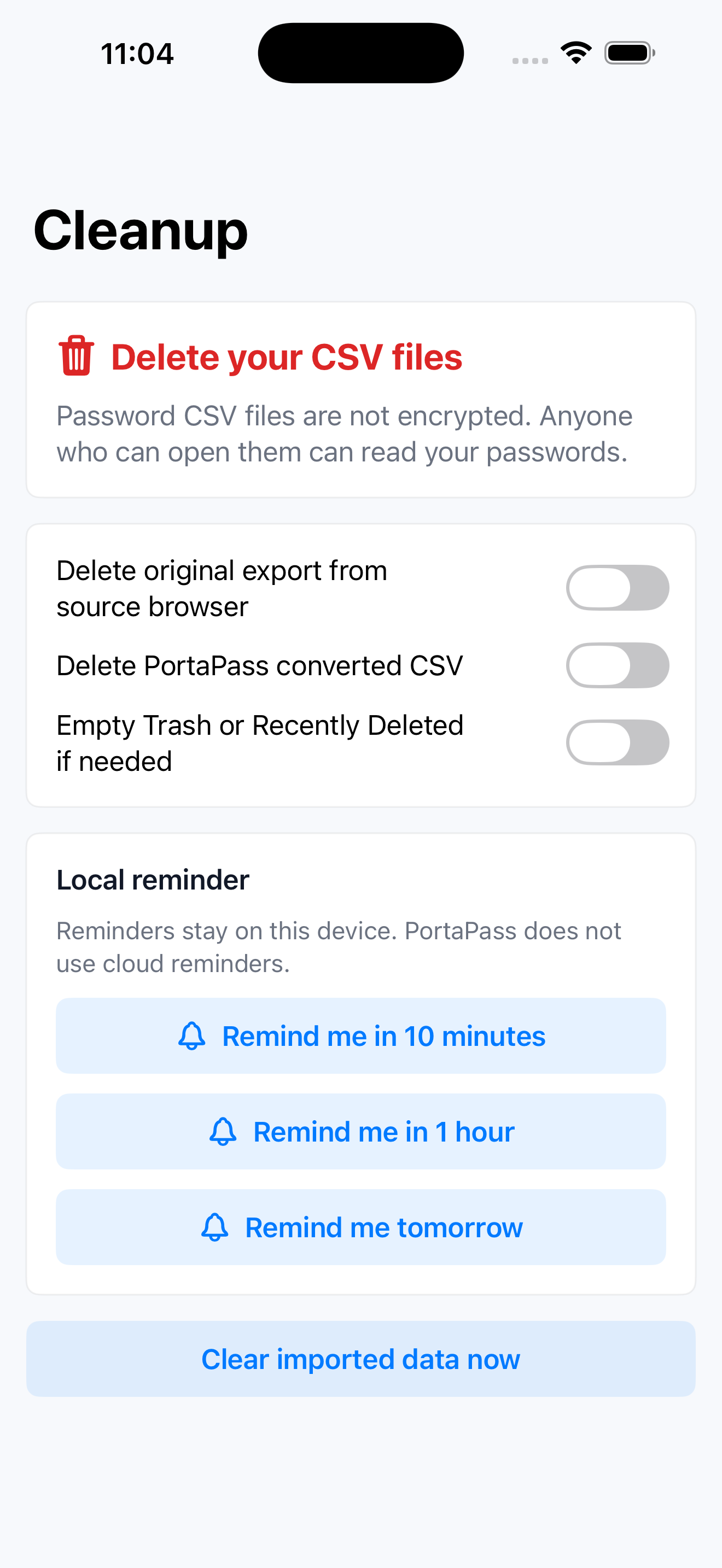
A short threat-aware checklist for exporting, inspecting, importing and deleting plain-text password files.
Split and verify a large password migration without exceeding Google Password Manager’s per-file limit.